Set Up Azure CLI and Create AKS Cluster
Install Azure CLI (if not already installed)
On Ubuntu/Debian:
curl -sL https://aka.ms/InstallAzureCLIDeb | sudo bash
Login to Azure
az login
Create a resource group
az group create –name myAKSResourceGroup –location eastus
Create AKS cluster (with 2 nodes)
az aks create \
–resource-group myAKSResourceGroup \
–name myAKSCluster \
–node-count 2 \
–enable-addons monitoring \
–generate-ssh-keys
Get credentials for the Kubernetes cluster
az aks get-credentials –resource-group myAKSResourceGroup –name myAKSCluster
Step 2: Install Required Tools
Install kubectl if not already installed
az aks install-cli
Verify connection to cluster
kubectl get nodes
Step 3: Install NGINX Ingress Controller
Your Ingress resource (like the one you shared earlier) won’t work unless an Ingress Controller is installed in your cluster to interpret and act on it.
Add the ingress-nginx repository
helm repo add ingress-nginx https://kubernetes.github.io/ingress-nginx
helm repo update
Install the ingress-nginx controller
helm install nginx-ingress ingress-nginx/ingress-nginx \
–namespace ingress-basic \
–create-namespace \
–set controller.replicaCount=2 \
–set controller.nodeSelector.”kubernetes.io/os”=linux \
–set defaultBackend.nodeSelector.”kubernetes.io/os”=linux
Step 4: Create ConfigMap and Secret Resources
apiVersion: v1
kind: ConfigMap
metadata:
name: app-config
data:
APP_TITLE: “AKS Demo Application”
APP_ENVIRONMENT: “Production”
APP_DESCRIPTION: “This is a demo application showcasing Kubernetes features”
apiVersion: v1
kind: Secret
metadata:
name: app-secrets
type: Opaque
data:
# These are base64 encoded values
# echo -n “admin” | base64
# echo -n “p@ssw0rd123!” | base64
DB_USERNAME: YWRtaW4=
DB_PASSWORD: cEBzc3cwcmQxMjMh
Apply the resources
kubectl apply -f configmap.yaml
kubectl apply -f secret.yaml
Step 5: Create a Deployment for Frontend Application
apiVersion: apps/v1
kind: Deployment
metadata:
name: frontend
labels:
app: frontend
spec:
replicas: 3
selector:
matchLabels:
app: frontend
template:
metadata:
labels:
app: frontend
spec:
containers:
– name: frontend
image: nginx:1.19
ports:
– containerPort: 80
resources:
requests:
cpu: “100m”
memory: “128Mi”
limits:
cpu: “500m”
memory: “256Mi”
env:
– name: APP_TITLE
valueFrom:
configMapKeyRef:
name: app-config
key: APP_TITLE
– name: APP_ENVIRONMENT
valueFrom:
configMapKeyRef:
name: app-config
key: APP_ENVIRONMENT
volumeMounts:
– name: config-volume
mountPath: /usr/share/nginx/html
livenessProbe:
httpGet:
path: /
port: 80
initialDelaySeconds: 30
periodSeconds: 10
volumes:
– name: config-volume
configMap:
name: app-config
Step 6: Create a Deployment for Backend API
apiVersion: apps/v1
kind: Deployment
metadata:
name: backend-api
labels:
app: backend-api
spec:
replicas: 2
selector:
matchLabels:
app: backend-api
template:
metadata:
labels:
app: backend-api
spec:
containers:
– name: backend-api
image: nginx:1.19 # In a real scenario, this would be your API image
ports:
– containerPort: 8080
resources:
requests:
cpu: “200m”
memory: “256Mi”
limits:
cpu: “500m”
memory: “512Mi”
env:
– name: DB_USERNAME
valueFrom:
secretKeyRef:
name: app-secrets
key: DB_USERNAME
– name: DB_PASSWORD
valueFrom:
secretKeyRef:
name: app-secrets
key: DB_PASSWORD
– name: APP_ENVIRONMENT
valueFrom:
configMapKeyRef:
name: app-config
key: APP_ENVIRONMENT
Step 7: Create Services for both components
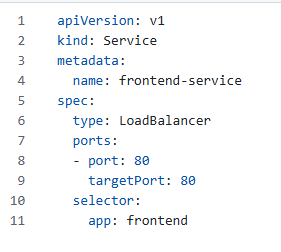
Create a LoadBalancer service for the frontend:
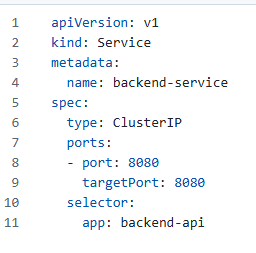
Create a ClusterIP service for the backend:
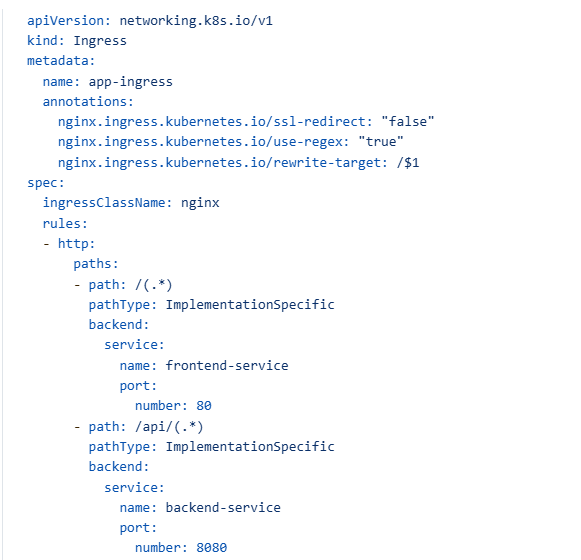
Step 8: Create Ingress Resource
Step 9: Apply All Resources
kubectl apply -f frontend-deployment.yaml
kubectl apply -f backend-deployment.yaml
kubectl apply -f frontend-service.yaml
kubectl apply -f backend-service.yaml
kubectl apply -f ingress.yaml
Step 10: Verify Your Deployment
Check all resources – kubectl get all
Check pods- kubectl get pods
Check services – kubectl get services
Check ingress- kubectl get ingress
Check ConfigMap and Secret – kubectl get configmap,secret
Step 11: Access Your Application
Get the external IP of your ingress controller:
kubectl get service -n ingress-basic
Look for the EXTERNAL-IP of the nginx-ingress-controller service and use that to access your application in a browser.
Step 12: Monitoring and Debugging
View logs of a specific pod (replace with actual pod name)
kubectl logs
Get detailed information about a pod
kubectl describe pod
Get detailed information about a service
kubectl describe service
Get detailed information about ingress
kubectl describe ingress app-ingress
Additional Features You Might Want to Add:
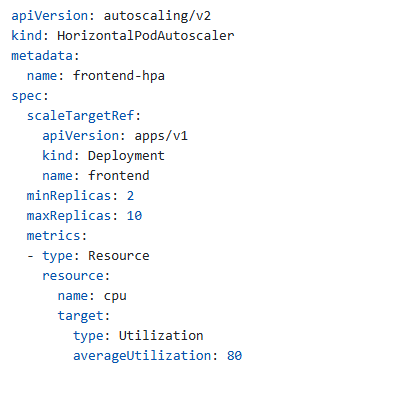
Horizontal Pod Autoscaler:
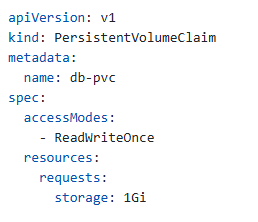
PersistentVolumeClaim for database (if needed):
Testing the Connection
You can verify the connectivity using curl:
Test frontend
curl http://134.33.133.39/
Test backend API
curl http://134.33.133.39/api/
DNS Configuration (Production Environment)
For a production environment, you would typically:
- Register a domain name (e.g.,
yourdomain.com) - Create an A record pointing to your external IP
134.33.133.39 - Then access your application at:
http://yourdomain.com/(frontend)http://yourdomain.com/api/(backend)
HTTPS Configuration
To enable HTTPS, you would need to:
- Configure TLS certificates in your ingress resource
- You can use cert-manager to automatically provision and manage Let’s Encrypt certificates
Let me know if you need help with any of these additional configurations!
Now troubleshoot if you get any error
Step 1: Check if your pods are running correctly
Check all pods are running
kubectl get pods -A
Check status of your application pods specifically
kubectl get pods
Check the logs of your frontend pods
kubectl logs -l app=frontend
Check the logs of your backend pods
kubectl logs -l app=backend-api
Step 2: Check if services are correctly configured
Check all services
kubectl get services
Get more details about your services
kubectl describe service frontend-service
kubectl describe service backend-service
Step 3: Check if endpoints are correctly configured
Check if your services have endpoints
kubectl get endpoints frontend-service backend-service
If there are no endpoints listed, the service cannot locate the pods.
Step 4: Examine ingress controller logs
Get the ingress controller pod name
kubectl get pods -n ingress-basic
Check the logs of the ingress controller
kubectl logs -n ingress-basic nginx-ingress-ingress-nginx-controller-[pod-id]
Step 5: Check resource utilization
Check if any pods are resource-constrained
kubectl top pods
Step 6: Test internal connectivity
Create a temporary debugging pod
kubectl run curl-test –image=curlimages/curl -i –rm — curl http://frontend-service
kubectl run curl-test –image=curlimages/curl -i –rm — curl http://backend-service:8080
Readiness vs Liveness Probes
- Readiness Probe: Determines if pod should receive traffic (unhealthy pods are removed from service endpoints)
- Liveness Probe: Determines if pod should be restarted (unhealthy pods are killed and replaced)
Leave a Reply